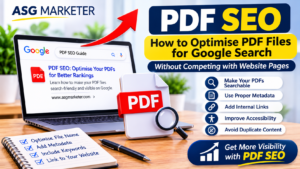


PDFs remain useful for businesses that publish brochures, product catalogues, reports, research papers, manuals, price lists and downloadable guides. They are easy to share and can preserve a document’s layout across devices. However, a PDF that looks polished to a reader may still be difficult to discover, access or interpret when search engines and assistive technologies process it.
PDF SEO is not about turning every document into a ranking asset. It is about making important files understandable, technically accessible and genuinely useful, while deciding when the information should live on an HTML page instead. A thoughtful approach helps search engines discover the right resource and helps visitors reach information in the format that suits them.
1. Decide whether the content should be a PDF or an HTML page
Start by considering the user’s task. A printable checklist, formal report or detailed product specification may work well as a PDF. A service explanation, frequently updated offer or page intended to generate enquiries is often better presented as HTML because it is easier to navigate, update, measure and connect to the rest of the website.
If the information is central to a customer journey, consider creating a dedicated web page and offering the PDF as an optional download. This gives visitors an accessible on-page version while retaining the convenience of a downloadable resource. Before publishing both formats, decide which one should be the primary destination for searchers.
2. Make sure the PDF contains selectable, searchable text
A common technical issue is a PDF made entirely from scanned page images. Search engines and visitors may not be able to interpret the words reliably if the document has no text layer. Where a scan is necessary, use optical character recognition (OCR) to create selectable text, then proofread the result carefully.
Check the final file by trying to select and copy a sentence. Search for a distinctive word within the document and confirm that the text appears in the correct reading order. OCR can misread figures, symbols, tables and specialist terminology, so a visual review remains important. When possible, export the PDF from the original source file with real text and logical headings.
3. Use descriptive file names and document metadata
Give the file a concise name that describes its subject. Use words separated by hyphens, avoid vague labels such as final-version-2 and do not add long strings of repeated keywords. A descriptive name is easier for users to recognise when downloaded, shared or stored.
Complete document properties where appropriate. Add a meaningful title, author or organisation and subject. These details help keep documents organised and provide context, although metadata alone does not guarantee search visibility. Make sure the visible document title agrees with the file’s purpose.
4. Structure the document with real headings and a logical reading order
A well-structured PDF is easier to scan and more accessible. Use actual heading styles in the source document instead of making every heading bold text at a larger size. Organise the content into a clear hierarchy, use descriptive section titles and keep paragraphs focused.
Set the document language and check the reading order, especially when the layout includes multiple columns, sidebars, tables or text boxes. Screen readers need a logical sequence to communicate the document accurately. Add meaningful alternative text to informative images and mark decorative elements appropriately.
5. Optimise images and keep file size manageable
Large images can make a PDF slow to download, particularly on mobile connections. Resize images to the dimensions actually needed, use suitable compression and avoid embedding unnecessarily large source files. Check that diagrams, charts and screenshots remain legible after compression.
Balance file size with quality. A tiny file is not useful if labels become unreadable or diagrams lose essential detail. Test the document on a mobile device and on a typical desktop screen before publishing. Explain important visual information in nearby text as well.
6. Publish the PDF at a stable, crawlable URL
Store important PDFs at predictable URLs and avoid changing the address every time the document is revised. If a file must move, update internal links and use an appropriate redirect from the old URL where possible. Do not leave broken links in older articles, resource pages or navigation.
Check that the file can be accessed without an unnecessary login or blocked request if it is intended for public discovery. Review robots directives, server responses and access restrictions that might prevent crawlers or users from retrieving it.
Technical checks can be included in a wider SEO audit to identify broken resource links, crawl barriers and other website issues. For sites with many important downloadable assets, log file analysis can provide additional insight into how search-engine crawlers request URLs.
7. Link to PDFs from relevant HTML pages
Do not leave an important PDF isolated in a folder that visitors have to guess how to find. Link to it from a relevant resource page, product page, service page or article. Use descriptive anchor text that explains what the visitor will receive, such as “Download the 2026 product specification” rather than “Click here”.
The surrounding HTML page should explain why the document is useful and who it is for. Include a short summary, key details and a clear download link. This context helps visitors decide whether the file answers their question before they open it. Keep destinations current when a document is replaced.
For a wider view of site structure and organic growth, explore ASG Marketer’s SEO services.
8. Prevent PDFs from competing with important website pages
Duplicate or overlapping content can create uncertainty about which URL should appear in search results. For example, a service page and a PDF brochure may contain almost identical copy. Decide which format is the main destination for the query and make the relationship between the two clear.
Where the HTML page should be the preferred result, ensure it provides the strongest user experience and consider whether the PDF needs to be indexed at all. A canonical link element is designed for HTML documents and should not be assumed to work as a universal solution for PDF files. For PDFs, use supported HTTP response headers where appropriate, or manage indexing through other suitable technical controls.
Do not block a PDF from crawling if search engines need to read a directive or header associated with it. The correct approach depends on whether the file should remain discoverable, whether it has a replacement page and how users are expected to access it.
9. Keep document versions accurate and maintained
Outdated documents can create confusion and undermine trust. This is particularly important for pricing sheets, policies, product specifications, compliance documents and downloadable forms. Assign an owner to review important files when the information changes and show a publication or revision date where it helps users.
If a new version replaces an old one, decide whether the previous file should remain available. Some resources need an archive for reference; others should be replaced so visitors do not act on expired information. Update links, file labels and page summaries to make the current version clear.
10. Measure whether PDF optimisation is working
Evaluate PDFs according to their purpose. A technical manual may be valuable because customers can find and use it, while a campaign guide may be intended to support enquiries. Look at search impressions and clicks where available, downloads, visits to the pages that link to the file and relevant conversion activity.
Use analytics events or download tracking where appropriate, and keep measurement consistent. Review Search Console data for relevant page and search performance, and check server logs when you need to understand crawler requests at URL level. Avoid treating a single metric, such as downloads, as proof that the document is meeting its business objective.
A practical PDF SEO checklist
- Choose PDF format only when it serves a clear user need.
- Provide an HTML version when information should be easy to browse or update.
- Ensure text is selectable and searchable; use OCR for scans and proofread it.
- Use a concise, descriptive file name and complete relevant document properties.
- Apply real heading styles and maintain a logical reading order.
- Set the document language and add useful alternative text to informative images.
- Compress images without making charts or text difficult to read.
- Publish the file at a stable URL and check that it can be accessed.
- Link to the PDF from relevant HTML pages with descriptive anchor text.
- Decide which URL should be the primary search destination when content overlaps.
- Use appropriate technical controls if a PDF should not appear in search results.
- Review outdated files, broken links, downloads and meaningful user actions.
Frequently asked questions
Can Google index PDF files?
Yes. Search engines can process many PDFs when the files are accessible and contain readable text. Indexing and visibility are not guaranteed, so check the technical setup and the value of the document.
Should every PDF on a website be indexed?
No. Index important public resources when they offer standalone value. Internal documents, outdated files, duplicate brochures or files with no search purpose may not need to appear in search results.
Are scanned PDFs bad for SEO?
A scanned PDF without a text layer can be difficult to interpret. Use OCR where needed, proofread the extracted text and check that the reading order is correct.
Do PDF file names affect SEO?
Descriptive file names provide useful context and make downloads easier to identify. They are one small part of optimisation, not a guarantee of rankings.
Can a PDF and an HTML page contain the same information?
They can, but decide which format should be the main search destination. Make the HTML page useful in its own right and manage the PDF’s indexing appropriately if the overlap could cause confusion.
Can I use a canonical tag on a PDF?
The standard HTML canonical element is not a universal solution for PDFs. Where appropriate, a supported HTTP Link response header can communicate canonical information for a non-HTML resource; implementation should be tested.
How can I stop a PDF appearing in Google Search?
Use an appropriate supported method, such as an X-Robots-Tag HTTP response header with noindex, and ensure crawlers can access the response. Choose the method based on whether the file should remain available to users.
Conclusion
PDF SEO starts with a simple question: is a downloadable document the best way to serve the visitor? When it is, make the file searchable, accessible, clearly named, quick to download and easy to reach from relevant website pages. When an HTML page is a better fit, use the PDF as a supporting resource rather than allowing two versions to compete for the same purpose.
A regular review of important documents can uncover outdated information, broken links and technical barriers before they affect the customer experience. If you need help assessing how downloadable resources fit into your wider organic search strategy, contact ASG Marketer to discuss your website’s SEO requirements.